
Featured Tutorial #1
In this tutorial you will learn techniques in combining and manipulating stock images to create this stunning Magical Forest Scene using various adjustment layers inside of photoshop to further enhance this wonderful and magical forest scene...

Featured Tutorial #2
This is brand new and exciting photo-retouching tutorial for photoshop. This video tutorial focuses on hair retouch. Before watching this video please note that there is a lot of information in this video, so watch and re-watch areas that were not so clear to you...


How to Create A Stunning Beautiful Woman Effect
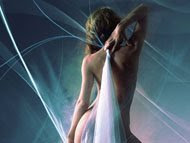 Create a stunningly beautiful woman effect with photoshop. Enjoy this tutorial and leave some comments if you like it.
 Open a photo of a girl that you want to work with, the sexier it is the better!
Is this sexy enough for you?
Now, Let's Begin!
Extract the lady from its background and load it to a separate layer of its own and name it "cut layer"...
Select the Brush Tool
Now, download and load this brush into Photoshop: Odysee_brush
Add a new empty layer under "cut layer"
Pick the brush as shown below :
Brush on the new layer like the one shown below:
Next,Download and load this brush into Photoshop : Green Lotus
Add a new empty layer above "cut layer"
Now choose the brush as shown below:
Select color #c6eaf9
Choose any of the brushes that you have just downloaded and create a new layer, and brush as much as you like until your photo looks good enough for you!
Select the Smudge Tool
Choose this brush : (Chalk brush 60 px)
Go to Window > Brushes, set option :
Duplicate "cut layer" once by pressing Ctrl + J on your keyboard or Cmd + J on MAC. Go back to the "cut layer". Start smudging on the edge of the lady until you end up with something like this :
Change the layer mode to Color Dodge
Now Duplicate "cut layer", a new layer will appear up on "cut layer copy"
Keep smudging on the edges...
Change the layers mode to Softlight.
Ok! Let's continue!
Click on the topmost layer on the layers palette
Go to Layer ~> New adjustment layer ~> Curve
Result would be something like the one below:
Go to menu Layer ~> New adjustment layer ~> Gradient Map
Pick any gradient you feel would be suitable to your chosen image, here's some examples :
Set the Adjustments Layer Mode to Overlay and Opacity to 70%
Set the Adjustments Layer Mode to Multiply and Opacity to 70%


Set the Adjustments Layer Mode to Soft Light and Opacity to 60%

Create Evil Looking Eyes in Photoshop
 This tutorial will teach you how to create those scary evil-looking eyes found on horror movie posters. Create your own version of this image using photoshop in just a few minutes of watching this tutorial. Enjoy watching this video and have fun...
Color Your B/W Photos in Photoshop with Curves
 This video tutorial will show you an alternative way of colouring black & white photos in Photoshop. This tutorial makes use of curves in the coloring process. Enjoy watching this tutorial and have fun...
Video Tutorial: Smooth Skin with Photoshop Surface Blur
 Smoothen Skin more Professionally using photoshop's surface blur, Surface Blur skin softening technique is much better compared to the gaussian blur technique because it lets you keep the highlights. In this video tutorial the author will show you the two techniques mentioned and you will be able to compare which of the two you think is better.
Photoshop: Advanced Hair Selection
 There are many ways in making hair selections in photoshop, but the most effective is hair selection that makes use of channels as it help give you more detail especially in cases where the subject blends with the background color.
Read More about Advanced Hair Selection...
Photoshop Beauty Retouch Video Tutorial
 This Photoshop video tutorial will show you as well as teach you how professionals go about doing a beauty retouch on someones photo. In this video tutorial you will learn the following:
- how to get rid of pimples
- how to smoothen the skin
- how to correct an irregular skin tone
- how to remove unwanted objects from a photo
- how to add some light effect with the help of Adobe Photoshop
View the Full Tutorial
How to Create a Power Ball Effect in Photoshop
 This tutorial will teach you how to create an amazing power ball effect using photoshop for one of your movie poster design projects. Enjoy reading this tutorial as you get to learn it first hand how the pro's in the field create this stunning effects...
Read more about Creating a power ball effect in Photoshop
Professional Photo-Retouching in Photoshop
 This is brand new and exciting photo-retouching tutorial for photoshop. This video tutorial focuses on hair retouch. Before watching this video please note that there is a lot of information in this video, so watch and re-watch areas that were not so clear to you. It is highly recommended that you pause at regular intervals before continuing so that you will fully understand all the process involved. This photoshop video tutorial covers the following areas:
– Colour Correction
– Removing Unwanted Straps and Hair
– Adjusting tonal values
– Grading the image
– Boosting image vividness
– Removing blemishes
– Working with blending modes
Creating a Magical Forest Scene in Photoshop

In this tutorial you will learn techniques in combining and manipulating stock images to create this stunning Magical Forest Scene using various adjustment layers inside of photoshop to further enhance this wonderful and magical forest scene.
Read More about Creating a Magical Forest Scene in Photoshop...